
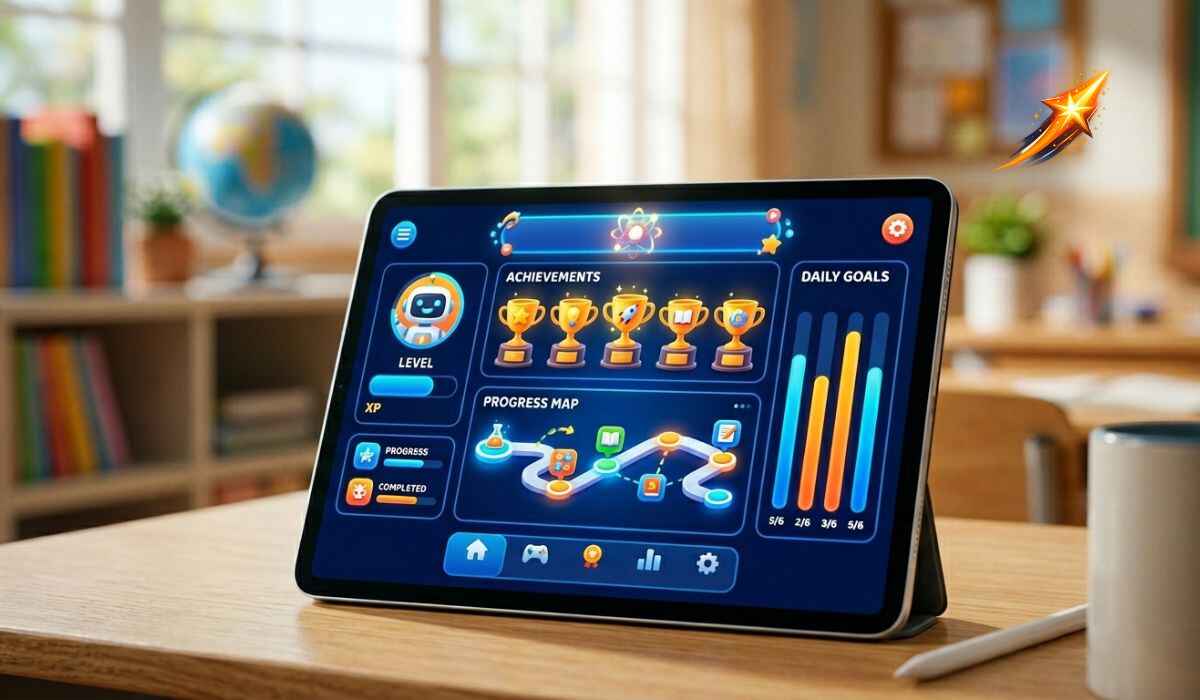
Blooket Dashboard: Complete Guide for Teachers, Students, and Parents
The Blooket dashboard is the central command center of the Blooket educational gaming platform, accessible at dashboard.blooket.com, where teachers create question sets, host live games, assign homework, and track student performance in real time, while students join games, earn coins, unlock collectible characters called Blooks, and review their own learning progress, all within a single unified interface that transforms traditional quiz-based review sessions into competitive, engaging game modes including Tower Defense, Battle Royale, Gold Quest, and Cafe.
Whether you are a teacher looking to gamify your classroom review sessions, a student trying to understand your dashboard features, or a parent supporting learning at home, this complete guide covers every section of the Blooket dashboard, how to log in, how to create question sets, all game modes, the homework feature, student analytics, account settings, and how to solve common login and dashboard problems.
What Is the Blooket Dashboard?
| Detail | Information |
|---|---|
| Dashboard URL | dashboard.blooket.com |
| Platform | Web-based educational gaming platform |
| Primary Users | Teachers, students, parents |
| Login Options | Google account, email and password, Clever |
| Account Types | Teacher account, Student account |
| Guest Access | Yes, students can join games without an account using a game code |
| Core Features | Game creation, hosting, question sets, homework, analytics |
| Game Modes | Tower Defense, Battle Royale, Gold Quest, Cafe, and more |
| Currency | Coins earned through gameplay |
| Collectibles | Blooks, unlockable characters |
| Homework Feature | Yes, assign games for students to complete independently |
| Privacy Note | Students under 13 must use Blooket under school or parental supervision |
The Blooket Dashboard is your command center for interactive learning. It is a platform where education meets fun through games and quizzes. Teachers use it to create engaging lessons. Students use it to learn while playing. The dashboard connects both groups in one dynamic space.
Think of it as a digital classroom hub. Teachers can design custom quizzes, host live games, and watch student progress in real time. Students join games with simple codes, compete with classmates, and track their achievements. Everything happens through this central dashboard.
How to Access the Blooket Dashboard
Method 1: Direct URL
Open any web browser and type dashboard.blooket.com in the address bar. This takes you directly to the dashboard login page without going through the Blooket homepage.
Method 2: Through the Blooket Homepage
Visit blooket.com and click the Login button in the top right corner of the homepage. After authentication, you are redirected automatically to your dashboard.
Method 3: Google Account Login
Click Sign in with Google on the login page. Select your Google account or enter your school email. Google automatically redirects you back to your Blooket dashboard. This method stays synced with your Google session, so returning to your login requires just one click. If your school uses Google Workspace, this is the recommended approach.
Method 4: Clever Login
Confirm with your school’s IT admin that Blooket has been enabled in your district’s Clever portal. Log in to your Clever account with your school credentials, then find the Blooket tile on your Clever dashboard. Click it and Clever authenticates you instantly, taking you directly to your Blooket teacher dashboard. Your class roster may already be synced, so you will not need to add students manually.
The Clever login option appears only if your school district has enabled it. If you do not see a Clever button on the Blooket login page, your district has not set it up and you can use Google or email login instead.
Joining a Game Without an Account
Students with no registered account can access a game by visiting blooket.com and clicking the Join a Game button. Enter the game ID code shared by the teacher to start playing instantly. Guest play does not save progress, coins, or Blook collections, but requires no setup from the student.
Teacher Dashboard vs Student Dashboard
Blooket offers two dashboard layouts, depending on whether you are using a student or teacher account. Here is a clear comparison so you know exactly what to expect from each.
| Feature | Teacher Dashboard | Student Dashboard |
|---|---|---|
| Create Question Sets | Yes | Yes |
| Host Live Games | Yes | No |
| Assign Homework | Yes | No |
| View Student Analytics | Yes | No |
| Join Games | Yes | Yes |
| Track Own Progress | Limited | Yes |
| Manage Class Roster | Yes | No |
| Earn Coins and Blooks | Yes | Yes |
| See Blook Collection | Yes | Yes |
| Settings and Privacy | Full control | Personal settings |
If you signed up with the wrong account type or want to switch your dashboard layout, log in and click your username or profile icon in the top-right corner of the screen. Select Settings from the dropdown menu. On the Settings page, you will see an option to Switch to Teacher Layout or Switch to Student Layout. Click the option you want and your dashboard will update instantly.
Blooket Dashboard: Teacher Features Explained
Creating Question Sets
One of the most powerful features of the Blooket dashboard is the ability to create your own custom question sets. Whether you are a teacher building a quiz for your class or a student making a study set for yourself, creating a question set takes just a few minutes.
Here is exactly how to create a question set:
- Log in to your Blooket account and open your dashboard
- Click the Create button at the top of your dashboard
- Give your question set a title, make it clear and descriptive such as Chapter 5 Science Review
- Add a cover image if you want, this is optional but makes your set easier to recognize
- Click Add Question to start adding your first question
- Type your question in the question field and add an image to the question if needed
- Add between 2 and 4 answer choices
- Mark the correct answer by clicking the checkmark next to it
- Repeat for as many questions as you need
- Save the set when complete
Using Pre-Made Question Sets
Blooket has a large library of community-created question sets covering subjects across all grade levels. Teachers can search this library, preview sets, and use them immediately without having to create questions from scratch.
This is especially useful for teachers who want to run a review game quickly or who need content for subjects outside their primary expertise.
Hosting Live Games
After creating or selecting a question set, a teacher clicks Host to launch a live game session. The teacher selects a game mode, adjusts settings like game duration and team options, and receives a game code.
Students enter this code on blooket.com to join the session. Once all students have joined, the teacher starts the game and all players are placed into the selected game experience simultaneously.
Assigning Homework
Blooket’s homework feature lets teachers assign question sets for students to complete independently outside of class time. Students can access assigned homework by clicking the paper file icon in the bottom right corner of their dashboard.
Homework assignments allow students to work at their own pace and in their own time while still engaging with the same gamified format used in live classroom sessions. Teachers can review how each student performed on homework assignments through the analytics section of their dashboard.
Managing Classes
After logging in, a teacher dashboard appears with class management tools. By clicking the plus button, teachers can create new classes. Once a class is created, a unique class code is generated and shared with teachers’ students. Students use this code to join the class and appear in the teacher’s roster.
Managing a class roster through the Blooket dashboard means teachers can see which students are enrolled, track individual performance across multiple sessions, and identify students who need additional support.
Viewing Student Analytics and Reports
The analytics section of the Blooket teacher dashboard is where teachers can assess student understanding without boring tests.
After hosting a game, go to your dashboard and click on Reports or My Reports. Select the game session you want to review. The data shows which questions each student answered correctly or incorrectly, how much time was spent per question, total score per student, and comparative performance across the class.
This data helps identify which students are struggling and which concepts need more review. By analyzing this data, teachers can focus more on weak students and help them grow their interest in specific subjects.
Blooket Dashboard: Student Features Explained
Joining Live Games
Students join games in two ways. If they have an account, they log in and access the dashboard where active game invitations may appear. If they are guests, they visit blooket.com, click Join a Game, and enter the game code provided by their teacher.
Tracking Progress and Stats
Students with registered accounts can review their performance, see game history, and track their learning progress through the student dashboard. The dashboard shows total coins earned, current Blook collection, performance statistics from recent games, and homework assignments due.
This self-tracking capability encourages students to take ownership of their learning by showing them measurable growth over time.
Coins and Blooks
Students earn coins by playing games and answering questions correctly. Coins are used to unlock Blooks, collectible characters that represent the player in games. Different Blooks have different unlock costs and rarity levels, creating a progression system that motivates continued engagement.
Blooket transforms traditional quizzes into interactive gaming experiences. Students earn rewards, unlock characters called Blooks, and compete in various game modes. Teachers get powerful tools to assess understanding without boring tests.
Viewing Homework
Click the paper file icon in the bottom-right corner of the student dashboard to view assigned homework. Teachers share homework directly through Blooket and students can complete it at any time before the due date.
All Blooket Game Modes
Each game mode takes the same question set and transforms it into a completely different gameplay experience. This variety is one of Blooket’s most compelling features for maintaining student engagement across multiple sessions.
Tower Defense
Students answer questions to earn currency that they use to place defensive towers against waves of enemy attackers. Correct answers fuel the defense while incorrect answers delay it. Tower Defense combines quiz performance with real-time strategy, keeping students engaged between question rounds.
Battle Royale
Players compete to be the last one standing by answering questions correctly to eliminate other players. Incorrect answers leave players vulnerable to elimination. Battle Royale creates dramatic moments and high engagement as the player pool narrows toward a winner.
Gold Quest
Players answer questions to earn gold and compete to accumulate the most by game end. Students can also steal gold from other players or lose gold through incorrect answers. Gold Quest is chaotic and funny, making it popular for casual review sessions.
Cafe Mode
Players manage a virtual cafe, earning ingredients and revenue by answering questions correctly. Cafe Mode rewards consistent accuracy over time and is popular for longer review sessions where sustained engagement matters more than competitive drama.
Factory Mode
Students run a virtual factory, producing resources by answering questions correctly. Factory Mode encourages consistent accurate answering rather than bursts of correct answers followed by errors.
Fishing Frenzy
Players fish for various items by answering questions. The items they catch have different point values, adding an element of chance alongside accuracy. Fishing Frenzy is one of the more casual game modes with a relaxed competitive atmosphere.
Crypto Hack
Players build and protect a crypto wallet while hacking into competitors’ wallets through correct answers. Crypto Hack is one of the more strategically complex modes and is popular with older students who respond to its tech-themed aesthetic.
The Blooket Dashboard Settings Section
The Settings section allows users to manage their account preferences. Here, students can update their username, change passwords, adjust privacy options, and manage notification settings. This section also helps users control how their account behaves, making the dashboard more personalized and secure.
If someone wants to update login details or adjust account visibility, the Settings section is the place to do it.
Announcements Section
This section is dedicated to the latest announcements and changes in Blooket. In this section, you can check offers, new game modes, seasonal updates, or any important update regarding Blooket features or policy. Checking this section regularly keeps teachers and students informed about new features that improve the learning experience.
Blooket Dashboard for Parents
Parents can also engage with Blooket to reinforce classroom lessons or create family-friendly learning activities. While Blooket is primarily a classroom tool, nothing prevents parents from hosting games at home using the teacher account features.
Parents who want to monitor their child’s Blooket activity should request reports from the classroom teacher who links the student’s account. Teachers can share performance data showing which questions students answered correctly and which areas need additional support at home.
For parents hosting review games at home, the teacher account features including question set creation, game hosting, and analytics are all available without any educational institution requirement. Simply sign up with a teacher role to use the full dashboard functionality for home learning.
Note that students under the age of 13 must use Blooket under school or parental supervision to comply with educational privacy laws.
Blooket Dashboard vs Other Educational Platforms
| Feature | Blooket | Kahoot | Quizlet | Gimkit |
|---|---|---|---|---|
| Game Modes | Multiple, varied themes | Limited | Flashcard and test modes | Multiple |
| Live Hosting | Yes | Yes | Limited | Yes |
| Homework Assign | Yes | Yes | Yes | Yes |
| Student Analytics | Yes | Yes | Limited free | Yes |
| Collectibles and Rewards | Yes, Blooks and coins | No | No | Yes |
| Free Plan | Yes, full features | Limited | Limited | Limited |
| Question Library | Large community library | Large library | Large library | Smaller |
| Age Appropriateness | All ages | All ages | Middle school and up | All ages |
| Gamification Depth | High, multiple game modes | Moderate | Low | High |
Blooket stands out for its collectible rewards system and the variety of game modes that keep the same question set feeling fresh across multiple sessions. The Blooks collection mechanic creates intrinsic motivation for students to participate consistently, which is a behavioral engagement driver that platforms like Kahoot do not replicate.
Common Blooket Dashboard Problems and Fixes
Cannot Access the Dashboard
Check that you are visiting dashboard.blooket.com rather than just blooket.com. If the site is unreachable, check whether Blooket is experiencing a service outage before troubleshooting your device or network.
Forgot Password
Use the Forgot Password link on the login page. Enter the email address associated with your account and follow the instructions in the reset email. If you signed up with Google, you cannot use the email and password reset feature since your account is authenticated directly through Google.
Students Cannot Join Game
Verify that the game code is entered correctly. Game codes are case-sensitive and expire when the game session ends. If students cannot join, confirm the host has started the lobby phase and has not yet begun the game, which prevents new joiners.
Wrong Account Type Showing
If your dashboard shows student tools when you need teacher tools or vice versa, go to Settings and switch your account layout. Both teacher and student layouts are available to any registered user.
Progress Not Saving for Students
Progress including coins and Blooks only saves for students with registered accounts. Guests who join via game code without logging in do not retain any progress after the session ends. Encourage students to create free accounts to preserve their history.
Tips for Getting the Most From the Blooket Dashboard
Create question sets in advance. Building your question library before you need it means you always have review material ready for any unit. Invest 10 minutes per topic to build a reusable set.
Rotate game modes for the same question set. Playing Tower Defense one day and Gold Quest the next with the same content prevents monotony and maintains engagement across repeated review sessions.
Use the homework feature for spaced repetition. Assigning the same question set as homework several days after the live classroom session reinforces memory through spaced repetition without requiring additional preparation.
Review analytics immediately after each game. The data from each session is most actionable immediately after the game while the lesson content is fresh. Use the reports section to identify which questions most students missed and reteach those concepts the following day.
Encourage students to log in rather than join as guests. Registered students accumulate coins and unlock Blooks, which creates stronger long-term engagement than guest play. The reward system only works for logged-in users.
Use the community question library to save time. Before creating a new set from scratch, search the Blooket library. A verified community set covering your exact topic may already exist and can be used immediately or edited to match your specific needs.
Frequently Asked Questions About the Blooket Dashboard
What is the Blooket dashboard URL?
The direct URL for the Blooket dashboard is dashboard.blooket.com. You can also reach it by logging in through blooket.com, which redirects you automatically after authentication.
How do teachers access the Blooket dashboard?
Go to blooket.com and click Login. Sign in with your Google account (email and password) or through Clever if your school has enabled it. After logging in, you are taken directly to the teacher dashboard where you can create sets, host games, and view analytics.
How do students access the Blooket dashboard?
Students log in to Blooket at blooket.com using their Google account or their email and password. Students can also join a game as a guest using a game code without creating an account, though guest play does not save progress or rewards.
What game modes are available in Blooket?
Blooket offers multiple game modes including Tower Defense, Battle Royale, Gold Quest, Cafe, Factory, Fishing Frenzy, and Crypto Hack. Each mode uses the same question set but transforms it into a completely different gameplay experience.
Can students see their own performance on the Blooket dashboard?
Yes. Logged-in students can review their game history, performance statistics, coins earned, and homework assignments through their student dashboard. Guest players do not retain any performance data.
What are Blooks on the Blooket dashboard?
Blooks are collectible characters that represent students during games. They are unlocked by spending coins earned through gameplay. Different Blooks have different unlock costs and rarity levels, creating a progression system that motivates continued participation.
Can parents use the Blooket dashboard?
Yes. Parents can create a teacher account on Blooket to host games at home and track their child’s performance. For monitoring classroom progress, parents should request reports from the classroom teacher.
How do I switch between teacher and student layout on the Blooket dashboard?
Log in, click your username or profile icon at the top right, select Settings, and choose Switch to Teacher Layout or Switch to Student Layout. The dashboard updates immediately.
What is the homework feature on the Blooket dashboard?
The homework feature lets teachers assign question sets for students to complete independently. Students access their assigned homework by clicking the paper file icon in the bottom-right corner of their dashboard. Teachers can review homework performance through the analytics section.
Read Also: Google Snake Game: Complete Guide to Play, Master, and Beat Your High Score




2 Comments